
Guides by role
Members (beneficiaries)
If you need help paying for care, this is where you start. You apply once to become a member. After that you can ask to join the programs that fit your needs.
Register
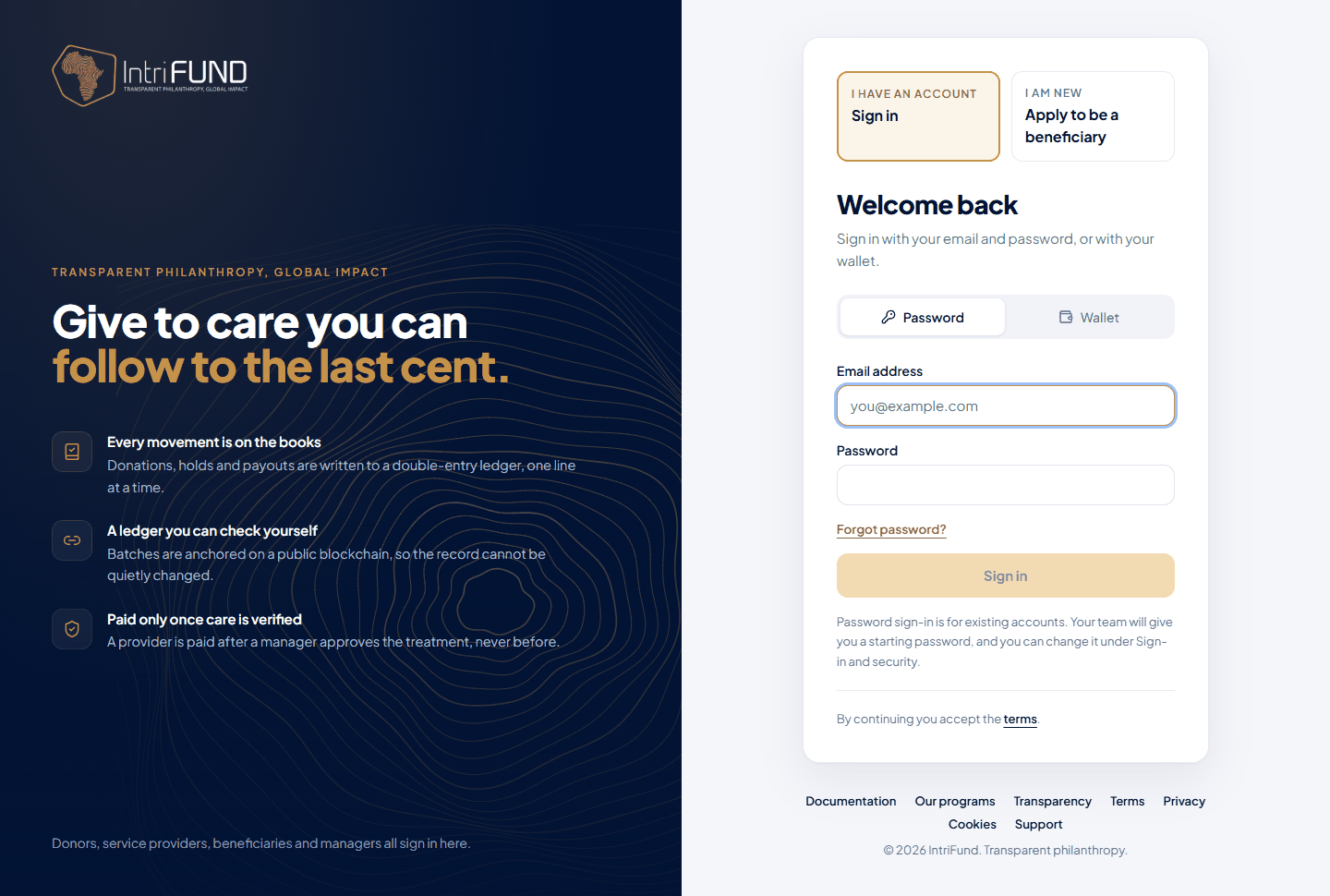
Open the front door and choose Beneficiary. On the sign-in page, choose I am new: Apply to be a beneficiary. (You can also go straight to the registration page.) You need an email address and a password of at least 10 characters. A few random words is a good choice.
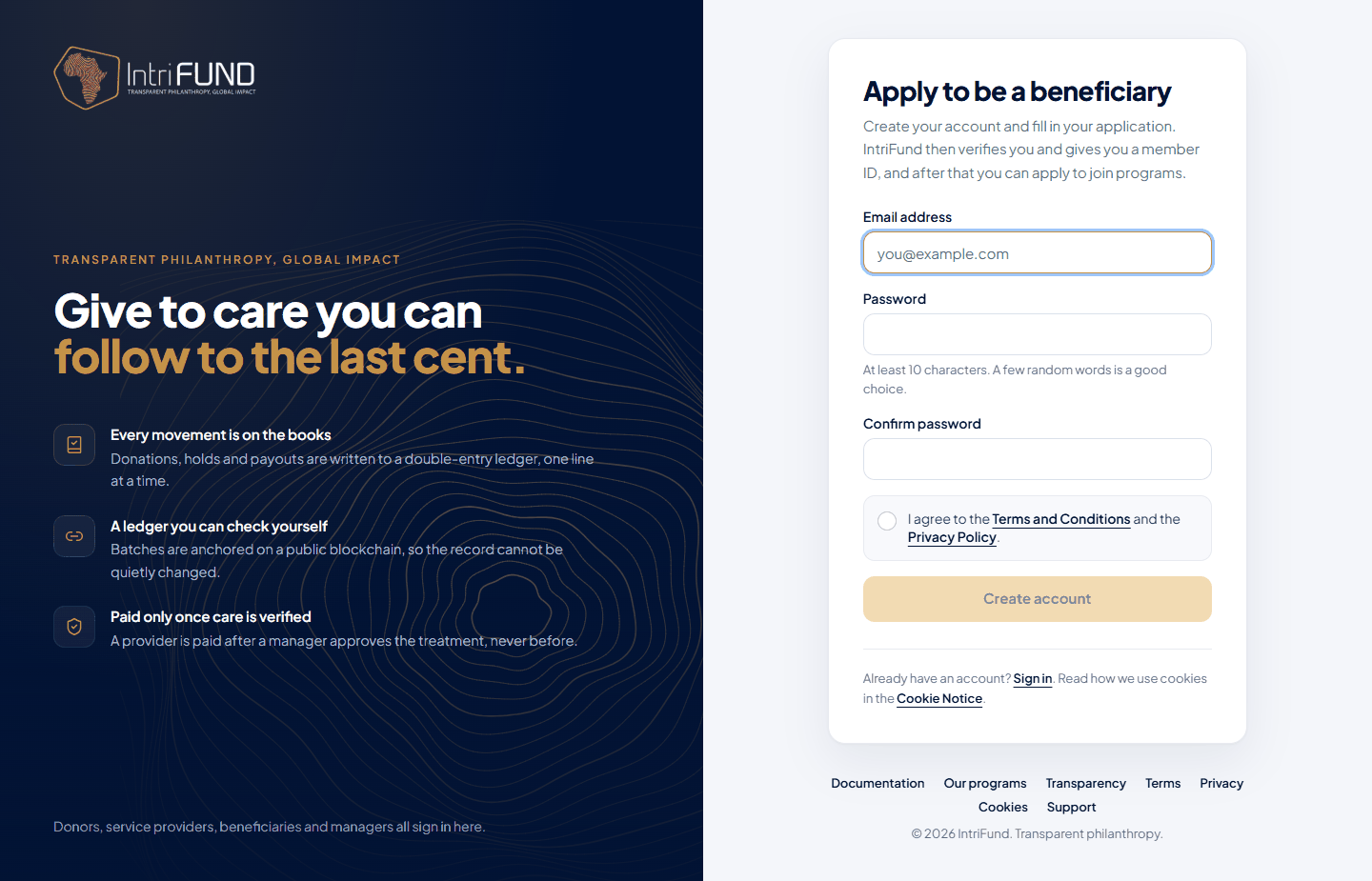
Enter your email and choose a password
Type the password twice so we know it is what you meant.
Tick the box to accept the Terms and Privacy Policy
You must accept them to continue. You can read them first: Terms and Privacy Policy.
Press Create account
You are signed in straight away and taken to the first stage of your application. Your application already has a number, in the form
APP-XXXXXX.
The application, stage by stage
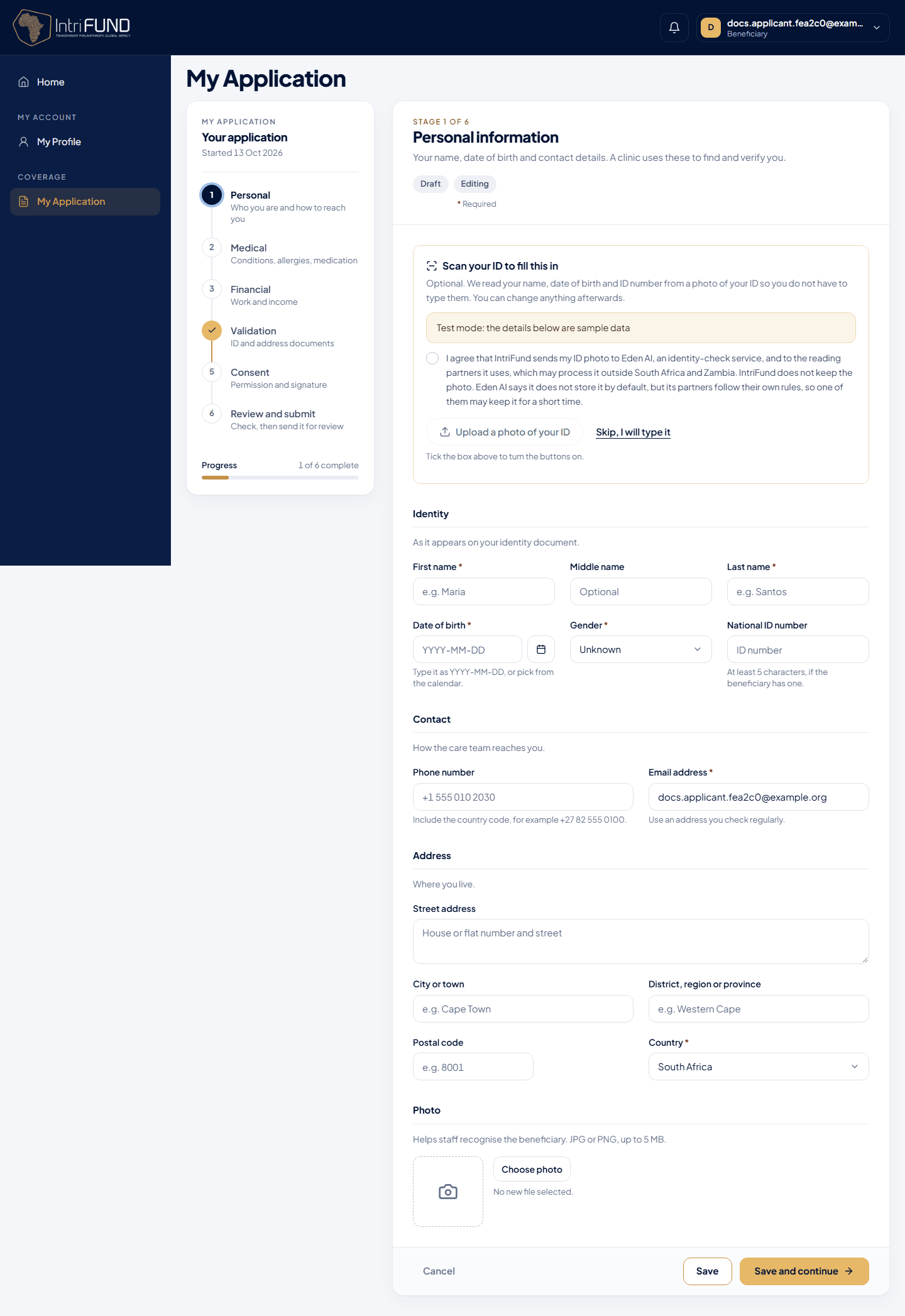
The application has six steps: five stages of information, then Review and submit. You can stop at any time and come back. The list on the left shows a tick on each finished stage and how many are complete. You can send the application only when every stage is complete.
- 1. Personal
- Who you are and how to reach you: your name, date of birth, gender, phone, email and address.
- 2. Medical
- Conditions, allergies and medication. Only IntriFund staff and the clinics you visit for care can see it.
- 3. Financial
- Your work and income. This helps us decide who needs help most.
- 4. Validation
- ID and address documents. Two uploads: your national ID or passport, and a recent utility bill (PNG, JPG or PDF).
- 5. Consent
- Permission and signature. Whether we may share your details to verify you, a declaration that your answers are true, and your signature as an uploaded file. Signing also means you accept the Terms and the Privacy Policy.
- 6. Review and submit
- Check everything, then send it for review.
The status tracker
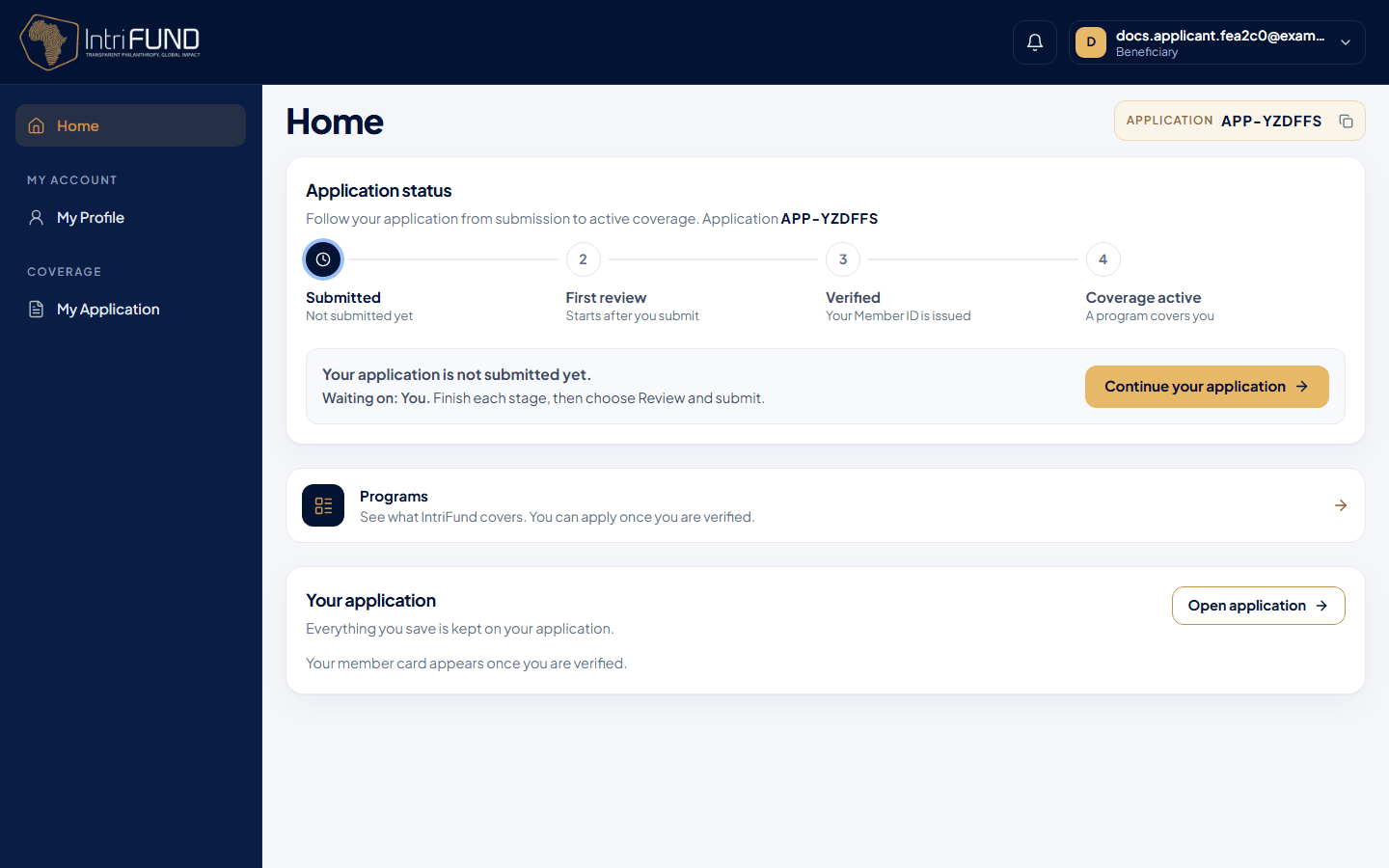
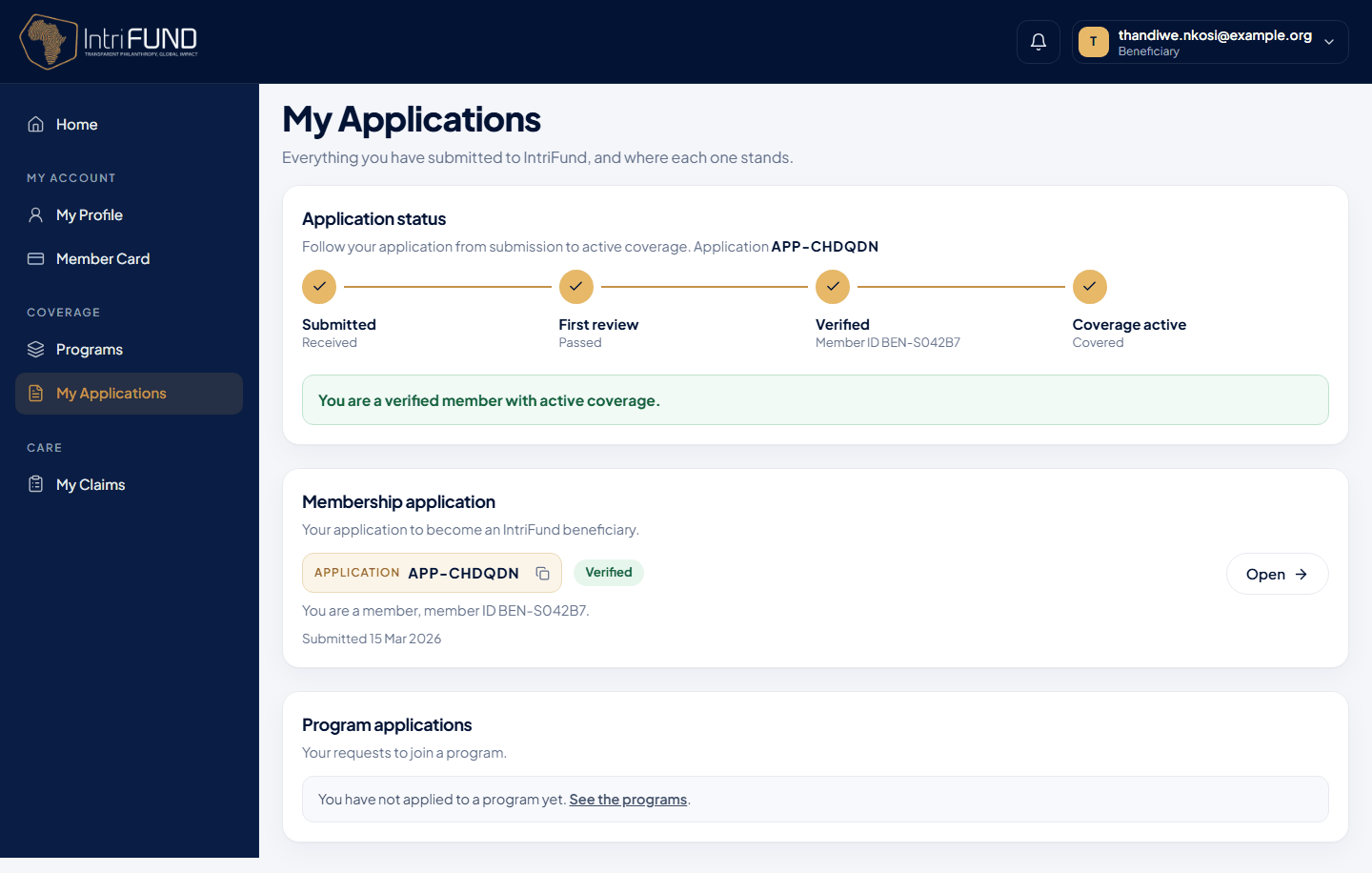
Your Home page shows a four-step tracker until you are verified, and My Applications always shows it. Each step has a note, and under the tracker a single sentence tells you what is happening now and who has the next move.
| Step | What it means |
|---|---|
| Submitted | We have your application. Until you press Submit, this step is the one in progress. |
| First review | A member of the team checks your application. |
| Verified | A second reviewer does the final check. Then your Member ID is issued. |
| Coverage active | A program covers you. This needs a separate step: joining a program. |
Your menu and Home
The menu on the left is grouped. Your Member ID shows at the top right of every page.
- Home
- A welcome, your Member ID, your coverage and your latest claims.
- My account
- My Profile and Member Card.
- Coverage
- Programs and My Applications.
- Care
- My Claims. A number shows how many claims are waiting.
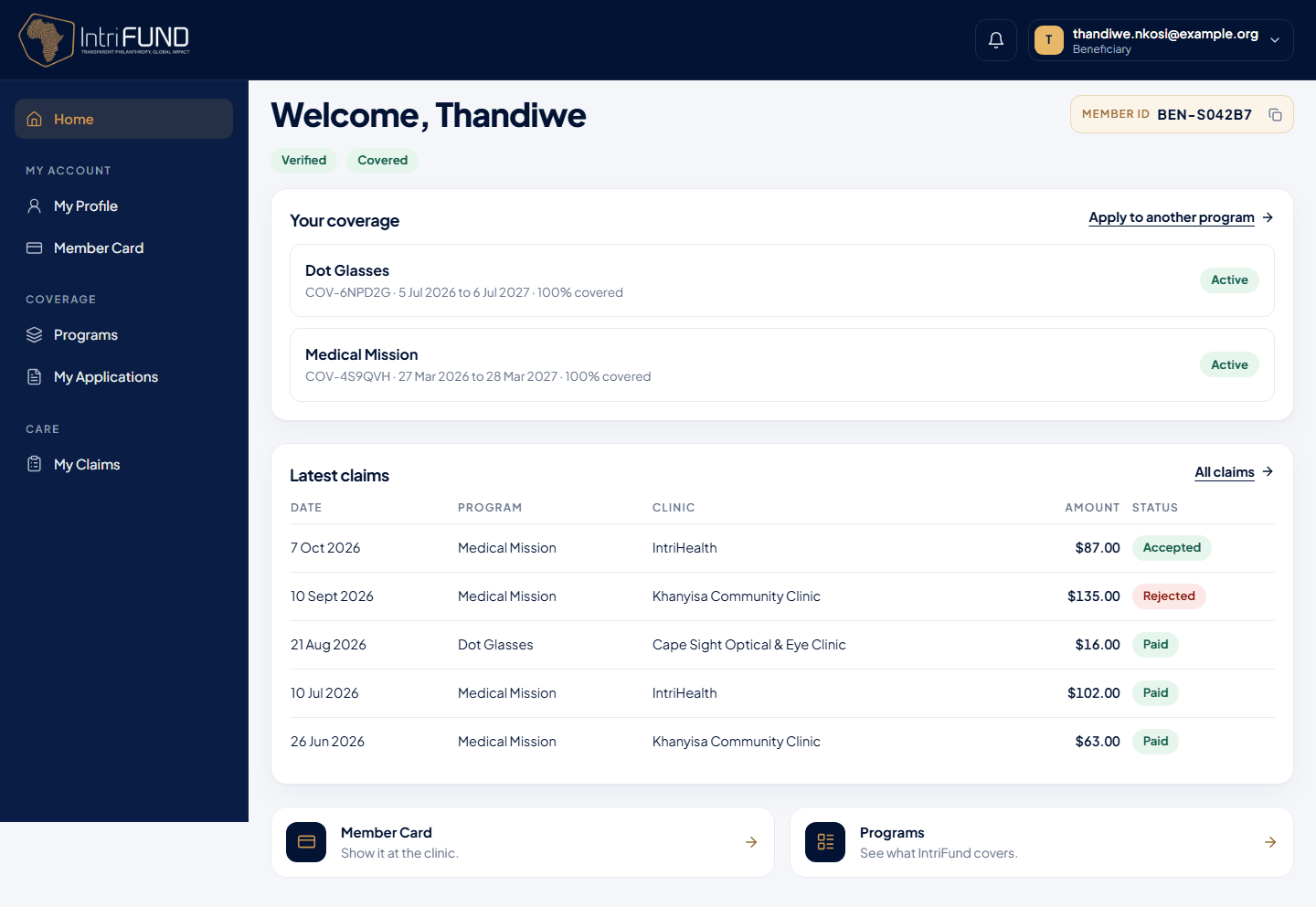
Until you are verified you see only Home, My Application and My Profile. After that the whole menu opens. On Home you see a welcome with your first name, chips for your Member ID, Verified and Covered, a list of your coverage in every program (with the dates and the percent covered), your five latest claims with the program of each, and shortcuts to your Member Card and to Programs. There is no program switcher: everything shows all your programs together.
On your phone
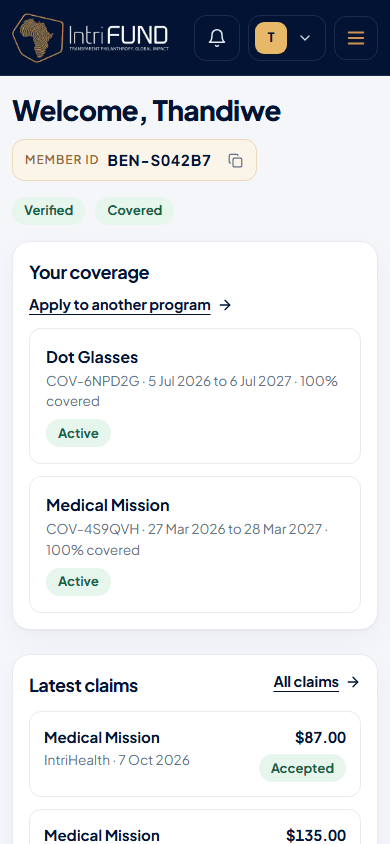
The menu becomes a button at the top. Everything else works the same, so you can show your Member Card at the clinic from your phone.
My Profile
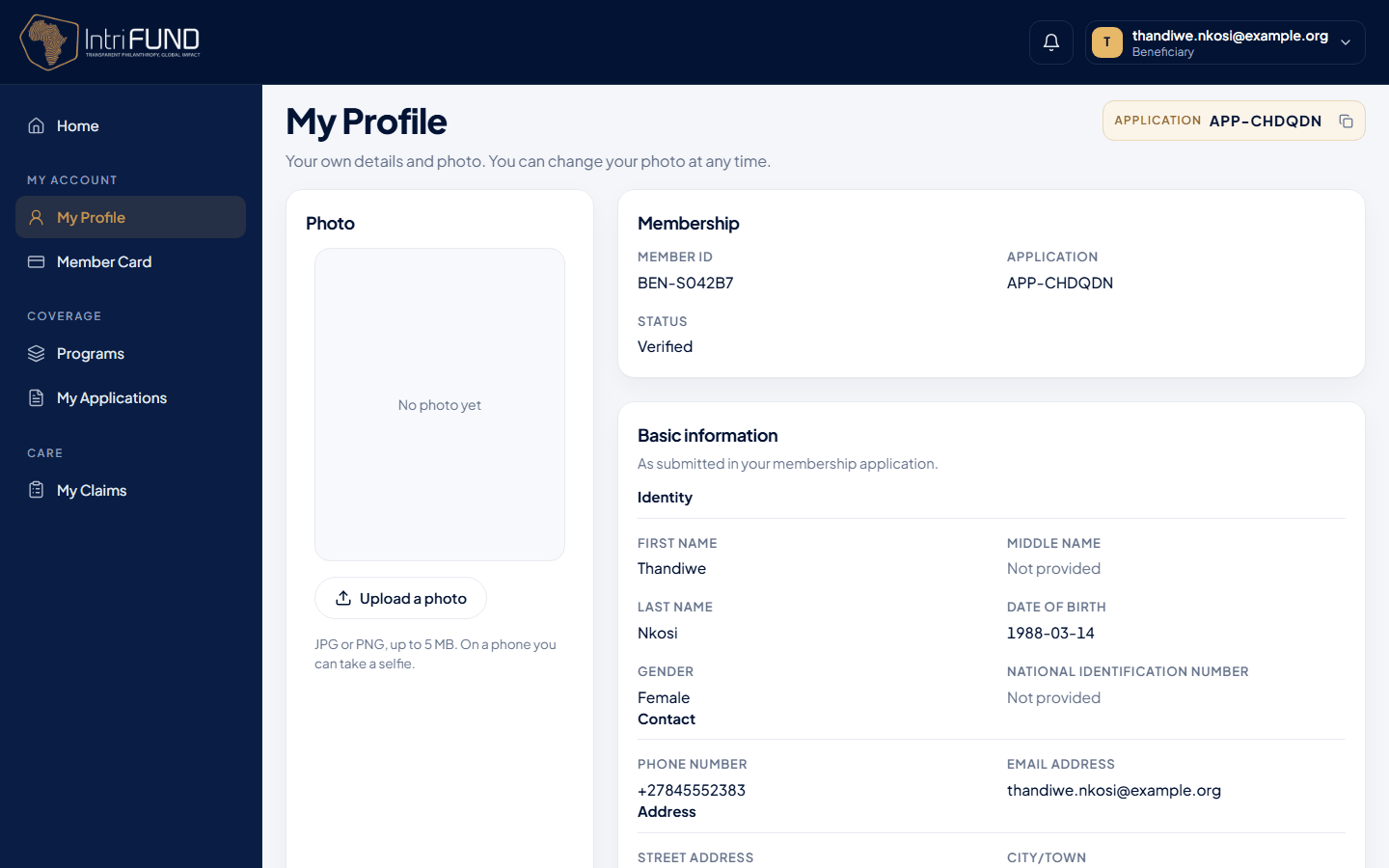
My Profile shows your own details and your photo. You can change your photo at any time: Take a selfie on a phone, or Upload a photo (PNG or JPG). A clear face photo helps staff check that the card is yours. Your photo is never shown to clinics through an eligibility check.
My Applications
Everything you have sent, and where each one stands. The top box is your membership application. Below it are your requests to join programs, each with its PRG- number.
Member Card
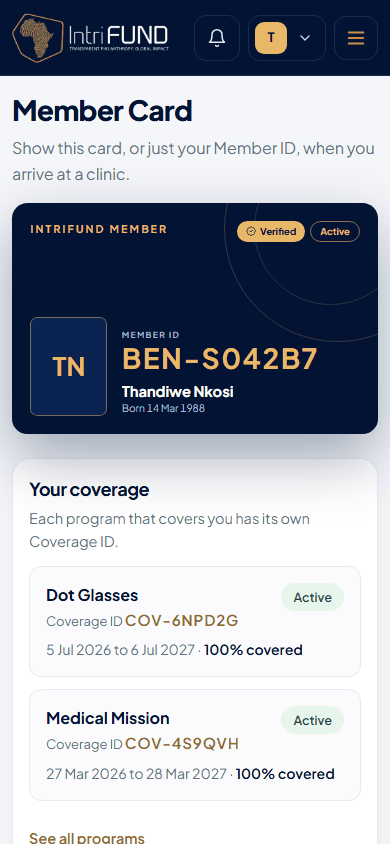
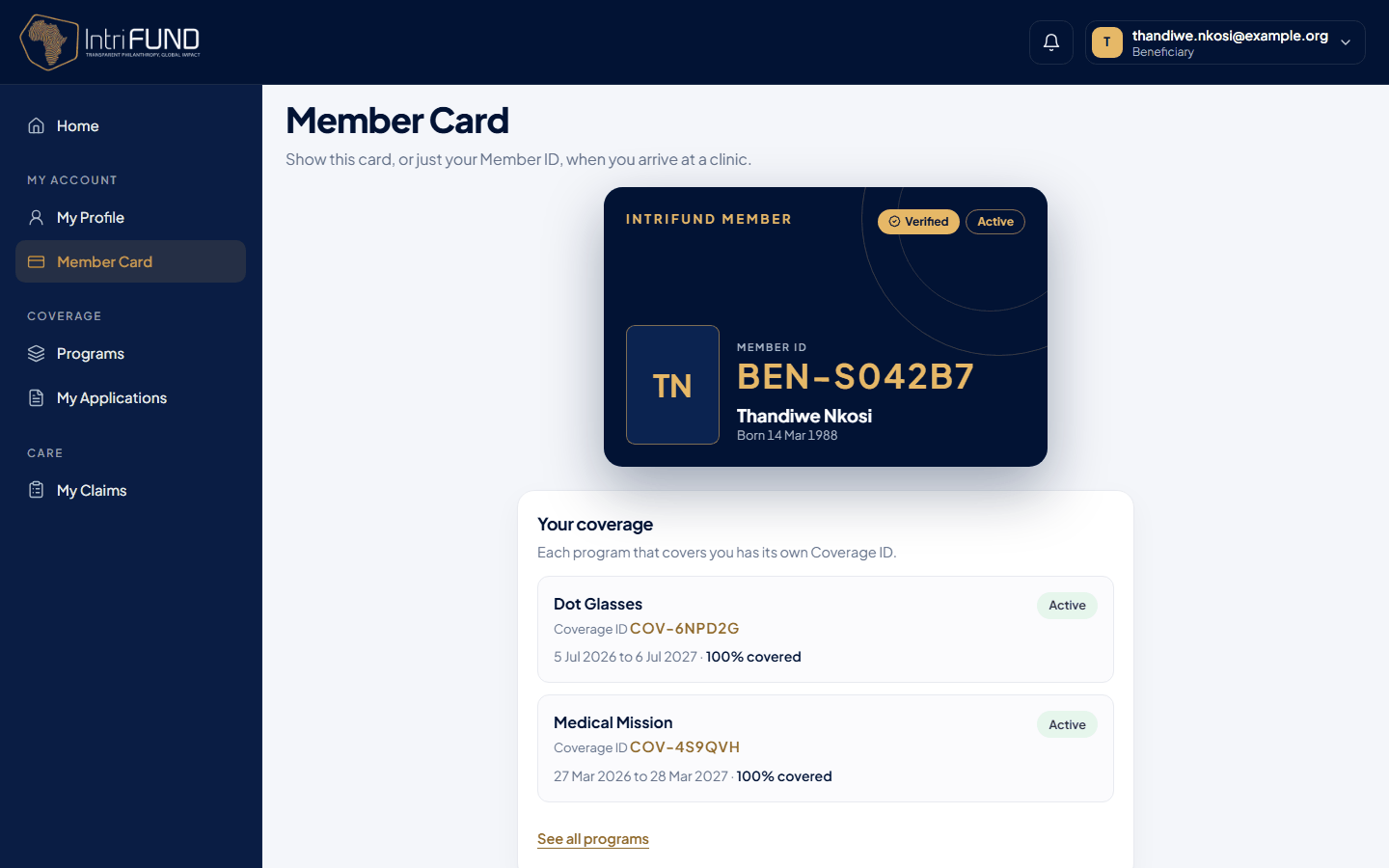
Once you are verified you have a Member Card. It shows your name, your photo (if you added one), your date of birth and your Member ID. It also lists each program that covers you with its Coverage ID, dates and whether it is active. Show the card, or simply say your Member ID, when you arrive at a clinic.
| Cover status | Meaning |
|---|---|
| Active | You are covered today. |
| Starts soon | Your cover begins on a later date. |
| Ended | The end date has passed. |
| Cancelled | The cover was stopped by IntriFund. |
Programs and how to apply
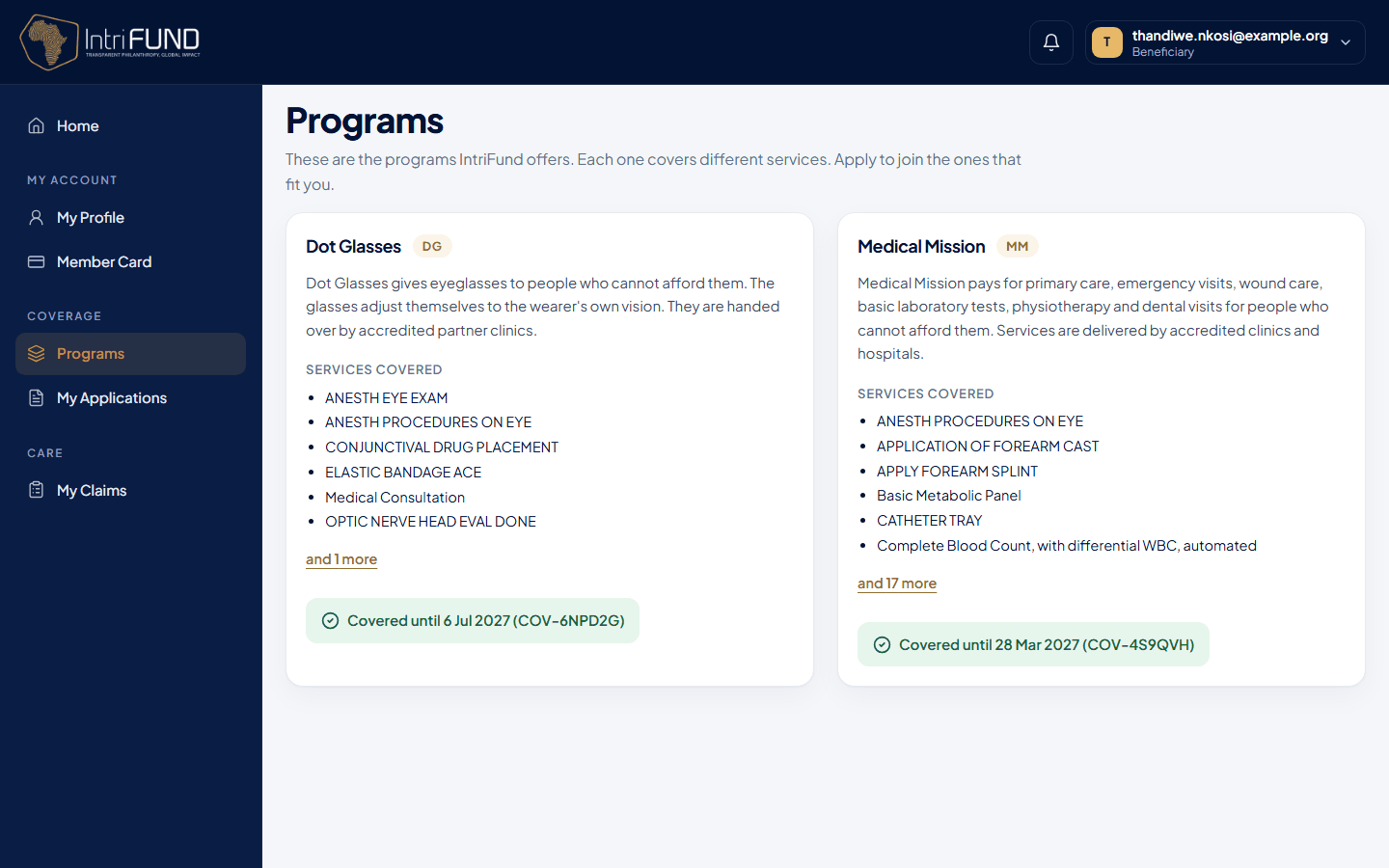
Being a member does not cover you by itself. Cover comes from a program. Open Programs to see what each one pays for.
Open Programs
Each card shows the program name, what it covers and your own state for it: Apply, opens on a date, closed, request pending, covered, or not approved.
Press Apply
You can apply once you are verified and while the application window is open. If you are not yet verified, you can read the cards but the buttons are switched off.
Answer the program’s requirements
Each program asks for its own things: a tick box to confirm something, a short written answer, or a document to upload (PNG, JPG or PDF, up to 5 MB). You can also add a note for the manager.
Review and send
You receive a
PRG-number. A manager decides. You get a notification either way. If you are not approved, the manager’s reason is shown and you may apply again.
You can withdraw a request that is still waiting for review. You cannot apply twice to the same program at once, or while you already have active cover in it.
Care and claims
You do not file claims yourself. When you need care, go to a clinic or hospital that works with IntriFund, and give them your Member ID and your date of birth. The clinic checks your cover with us and, if you are covered, treats you and sends the claim for payment.
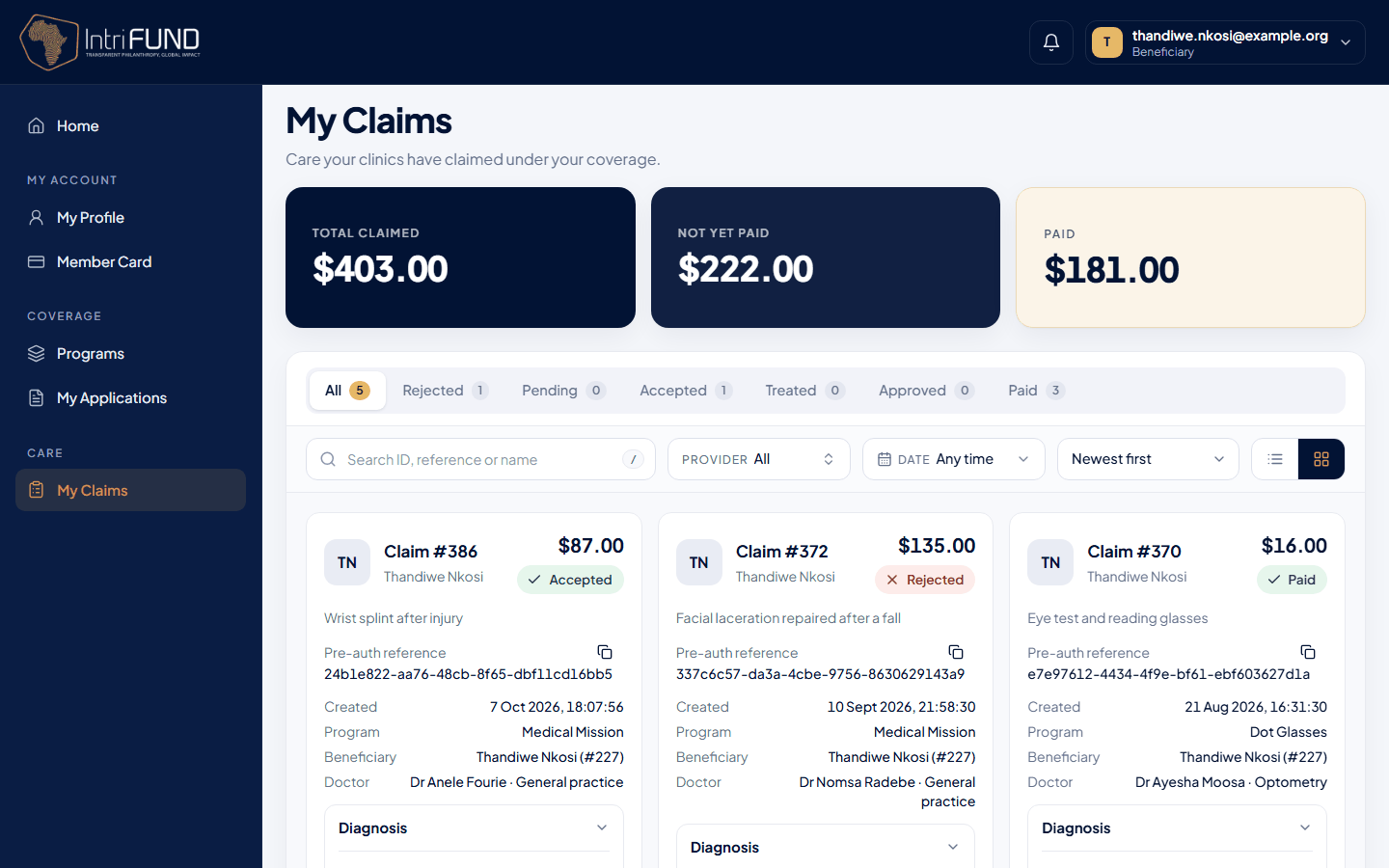
My Claims, under Care in the menu, lists the claims clinics have made for you, across all your programs. Each claim shows its program. Your home page shows the latest few. At the top, three boxes show the total claimed, the amount not yet paid and the amount paid. Until a clinic files a claim for you, the list says so.
What each status means
Your membership application
- Not submitted
- You have started but not pressed Submit.
- Waiting for review
- The team is checking it. Nothing to do.
- First review done
- One more reviewer, then you are verified.
- Verified
- You are a member and have a Member ID.
- Needs changes
- Update the application and submit it again.
A program application
- Waiting for review
- A manager has not decided yet.
- Approved
- You have cover. Your Coverage ID is on your Member Card.
- Not approved
- See the reason. You may apply again.
- Withdrawn
- You cancelled the request.
Questions members ask
How long does verification take?
There are two reviews by two different people, so allow some days. We notify you at each step. You do not need to chase us.
I forgot my password.
Press Forgot password? on the sign-in page. Once email is live, we send you a six-digit code. If you use an authenticator app, you can enter a code from the app or a recovery code instead. If you have neither, ask a manager for a temporary password. It works for 24 hours and for one sign-in, then you choose your own. See Forgot your password.
Can I change my details after I submit?
You can edit your application while it is waiting for review, or when it needs changes. After it is verified, it is locked. Your photo can be changed at any time. For anything else, contact support.
Does the clinic see my photo, address or phone number?
No. A clinic that checks your cover sees only whether you are covered and why. Your medical information is visible to the clinics you visit for care and to IntriFund staff. See Security and privacy.
I was not approved for a program. What now?
Read the reason on the Programs card. Fix what it mentions and press Apply again. A new request gets a new number.
Is it free?
Applying and membership are free. Please never pay anyone to apply or to be verified. IntriFund staff will never ask you for money or for your password.
- More questions? See the FAQ and support page.