
Guides by role
Donors
Give to a program, keep a clear record of what you gave, and follow your gift to the patients it helped.
Sign up and sign in
Anyone can read about the programs and the public ledger without an account. To give, you need a donor account.
Create your account
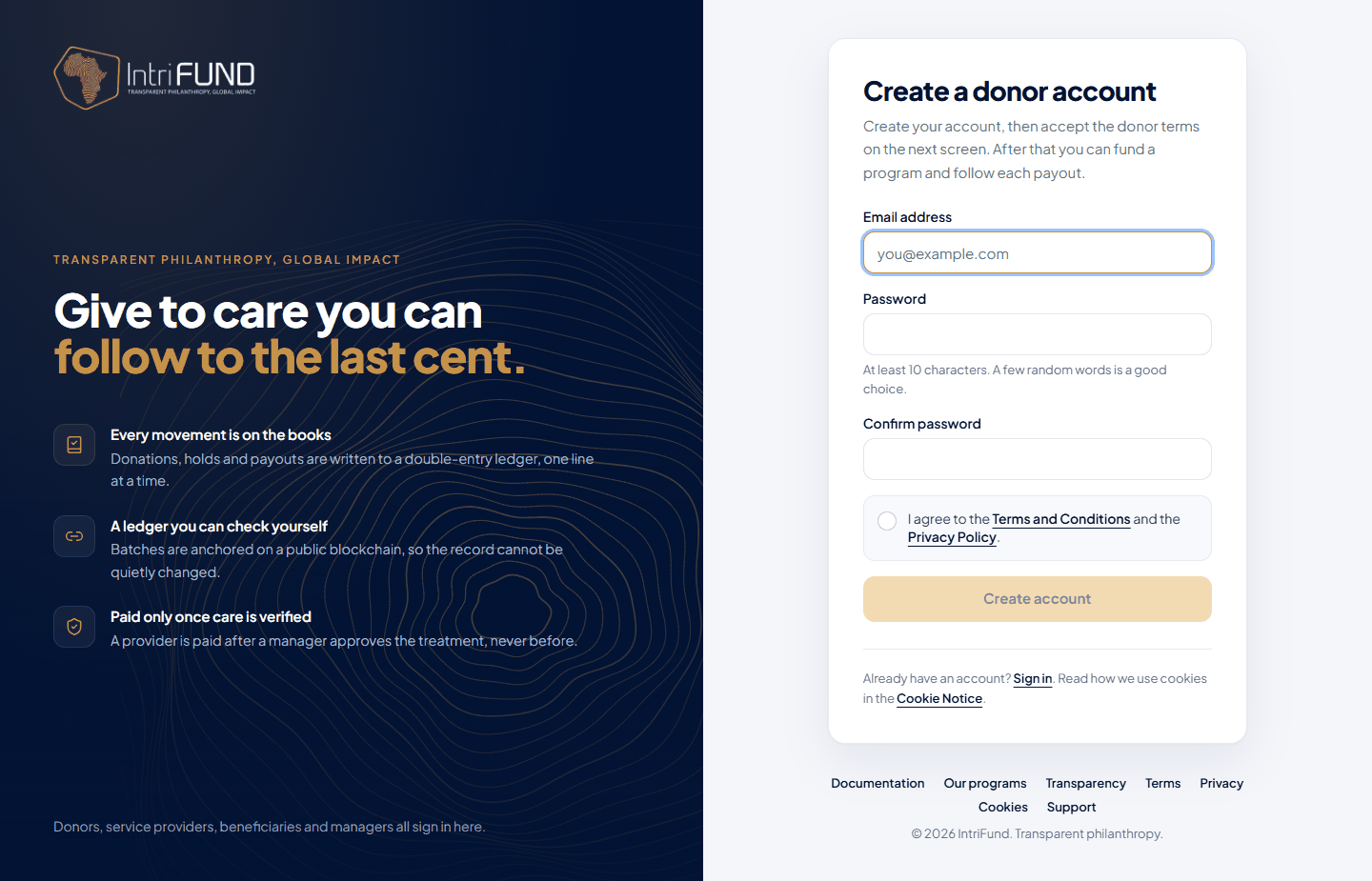
Open the front door and choose Donor. On the sign-in page, choose I am new: Create a donor account. Enter your email address and a password of at least 10 characters, tick the box for the Terms and the Privacy Policy, and press Create account.
Accept the donor terms
The first time you open the donor portal you are asked to confirm your details and accept the donor terms. After that you land on the Donate screen.
Sign in next time
Choose Password and enter your email and password, or choose Wallet, connect your crypto wallet and sign a short message. Signing costs nothing. Once email codes are switched on you can also sign in with a six-digit code sent to your email.
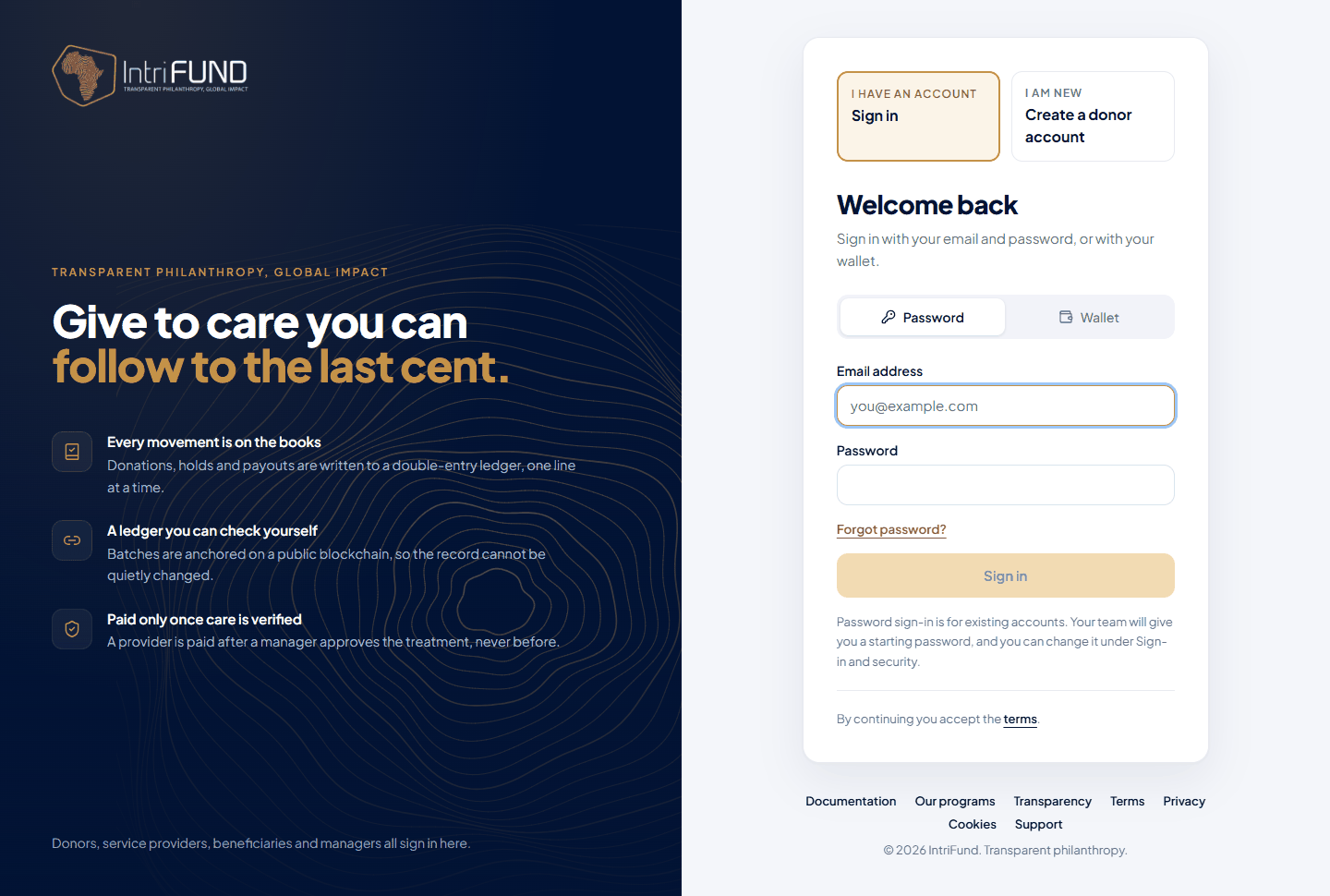
If you forget your password, see Forgot your password. You can add an authenticator app for a second check at sign-in. See Security and privacy.
Explore the programs
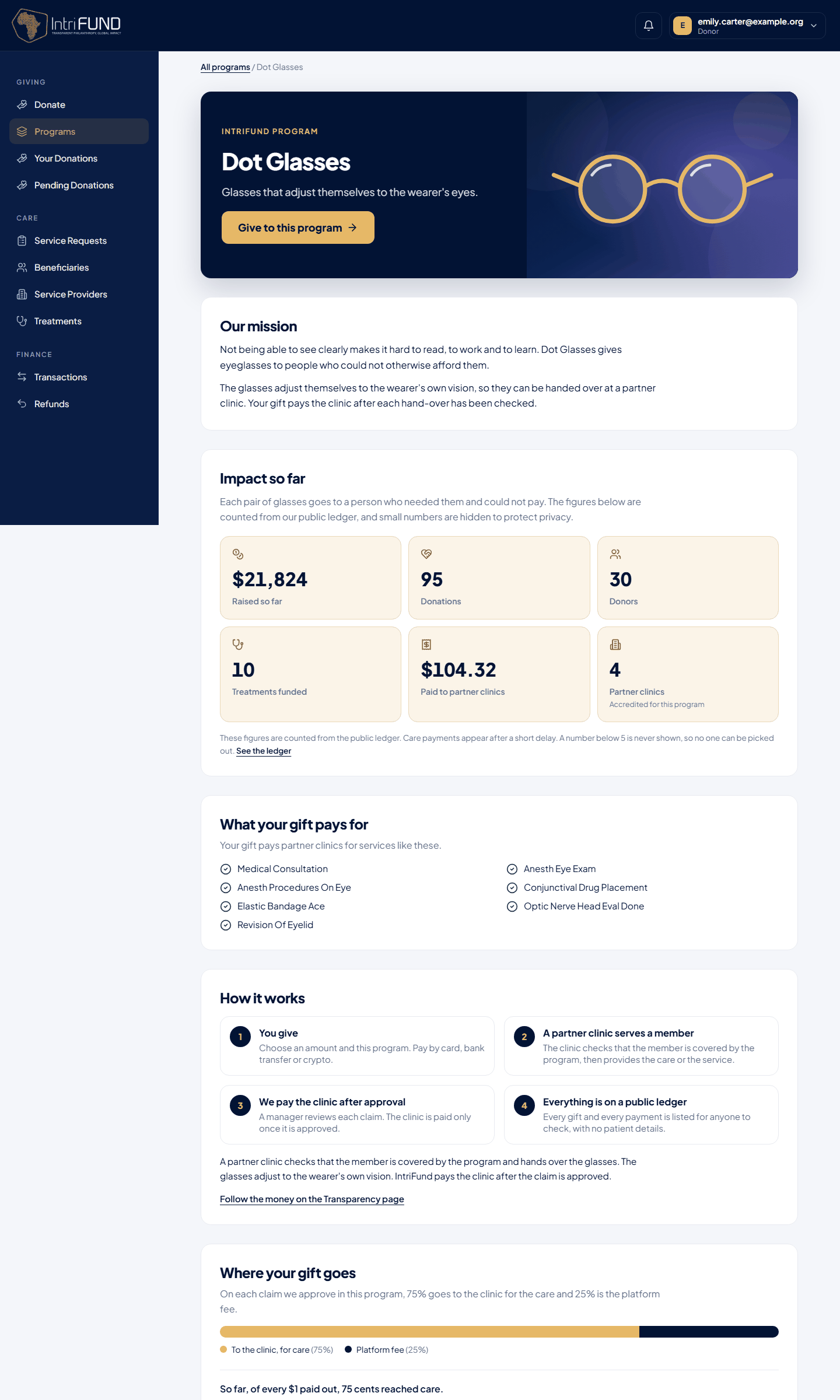
Programs in the menu shows every open program as a card, with a picture, a short line about it and two numbers: treatments funded and the amount raised so far. The same cards slide across the Donate screen. Choose Learn more to open the program’s own page: its mission, what a gift pays for, how it works, where the money goes and how much has been given over the last 12 months. Choose Give to this program and the Donate form opens with that program already selected.
Anyone can read these pages without signing in, at /programs. Every figure is counted from the public ledger. A number below 5 is never shown, so no one can be picked out. See Programs for what each section means.
Make a donation
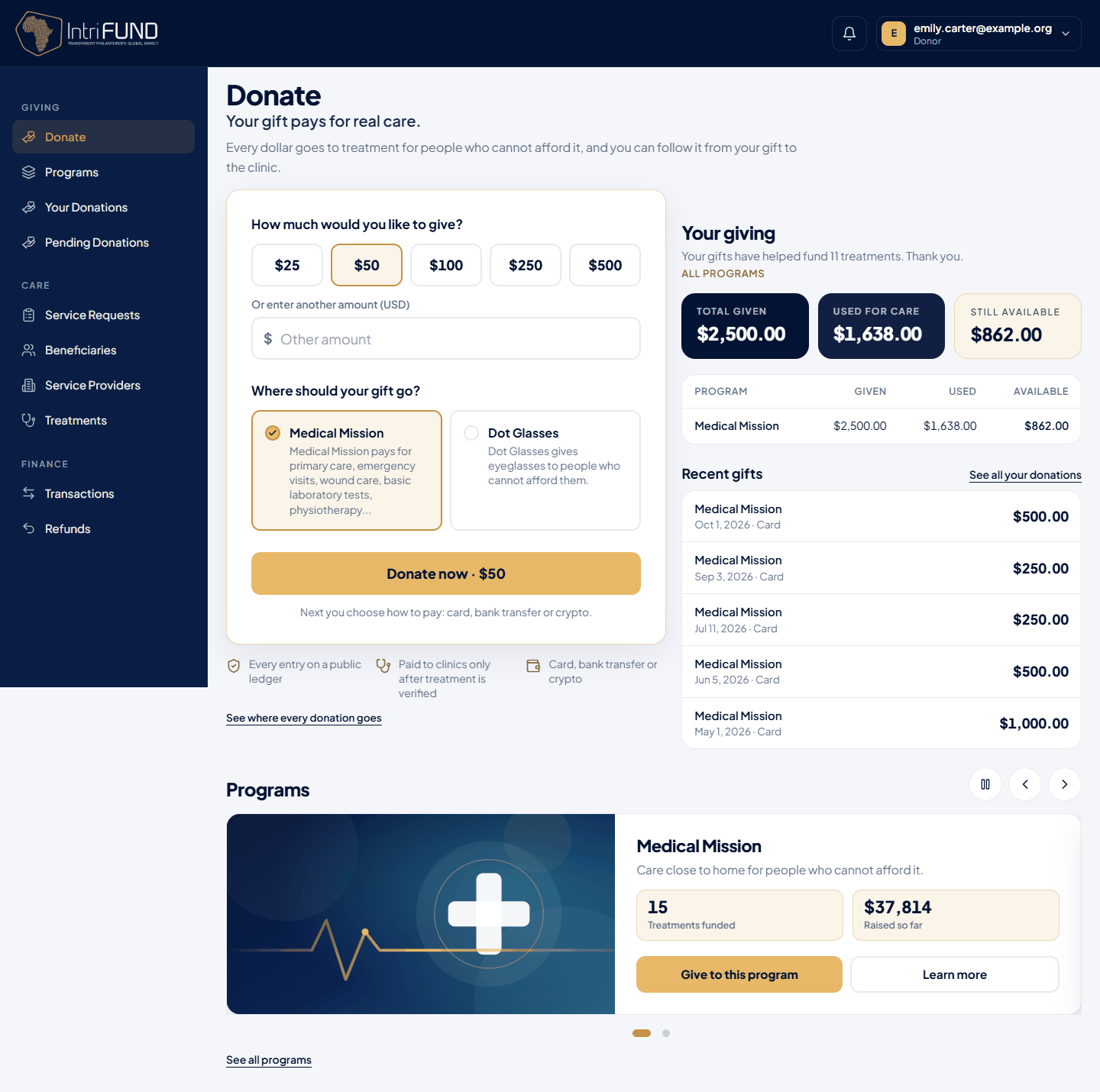
The Donate screen starts with the gift, not with a menu. Every donation goes into one program, and you choose it on this screen. Every other page shows all your programs together, so a gift is always visible after you make it. Each list has a Program column and a Program filter at the top if you want to see one program only. There is no program switcher in the donor portal.
Choose an amount
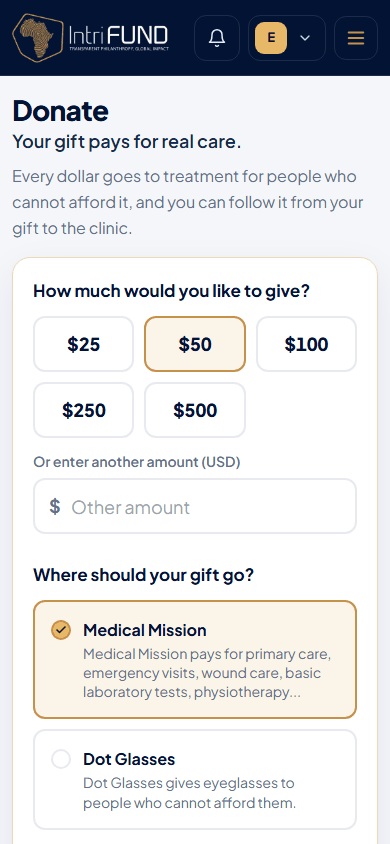
Tap one of the preset amounts ($25, $50, $100, $250 or $500) or type your own in US dollars.
Choose where your gift goes
Under Where should your gift go?, pick a program. We remember your last choice and pre-select it next time. It only sets the default for the Donate screen and checkout; it does not hide your other gifts.
Press Donate now
The button shows your amount, for example Donate now · $50. On the next page you choose how to pay: card, bank transfer or crypto. They are explained below.
Confirm
When the payment is confirmed, your gift appears under Your Donations and in Transactions, with the program it went to.
- Card
- Paid on a secure Stripe page. The gift is recorded as soon as Stripe confirms it, usually within seconds. We never see your card number. Card payments are in test mode for now: no real money moves, and Stripe’s test card 4242 4242 4242 4242 with any future date and any three digits is accepted.
- Bank transfer
- You are given IntriFund’s bank details and a reference. Send the money from your bank, then confirm in the app. A manager matches it to the bank statement before it counts. See below.
- Crypto
- Send the program’s digital dollar token, USDIntrifund, from your wallet to the IntriFund vault. 1 token is worth 1 US dollar. We read the payment from the blockchain and record it once it is confirmed.
Pending bank donations
A bank transfer takes time, so it waits as a Pending donation request until a manager confirms that the money arrived. Follow it under Pending Donations. You can cancel a request that has not been confirmed.
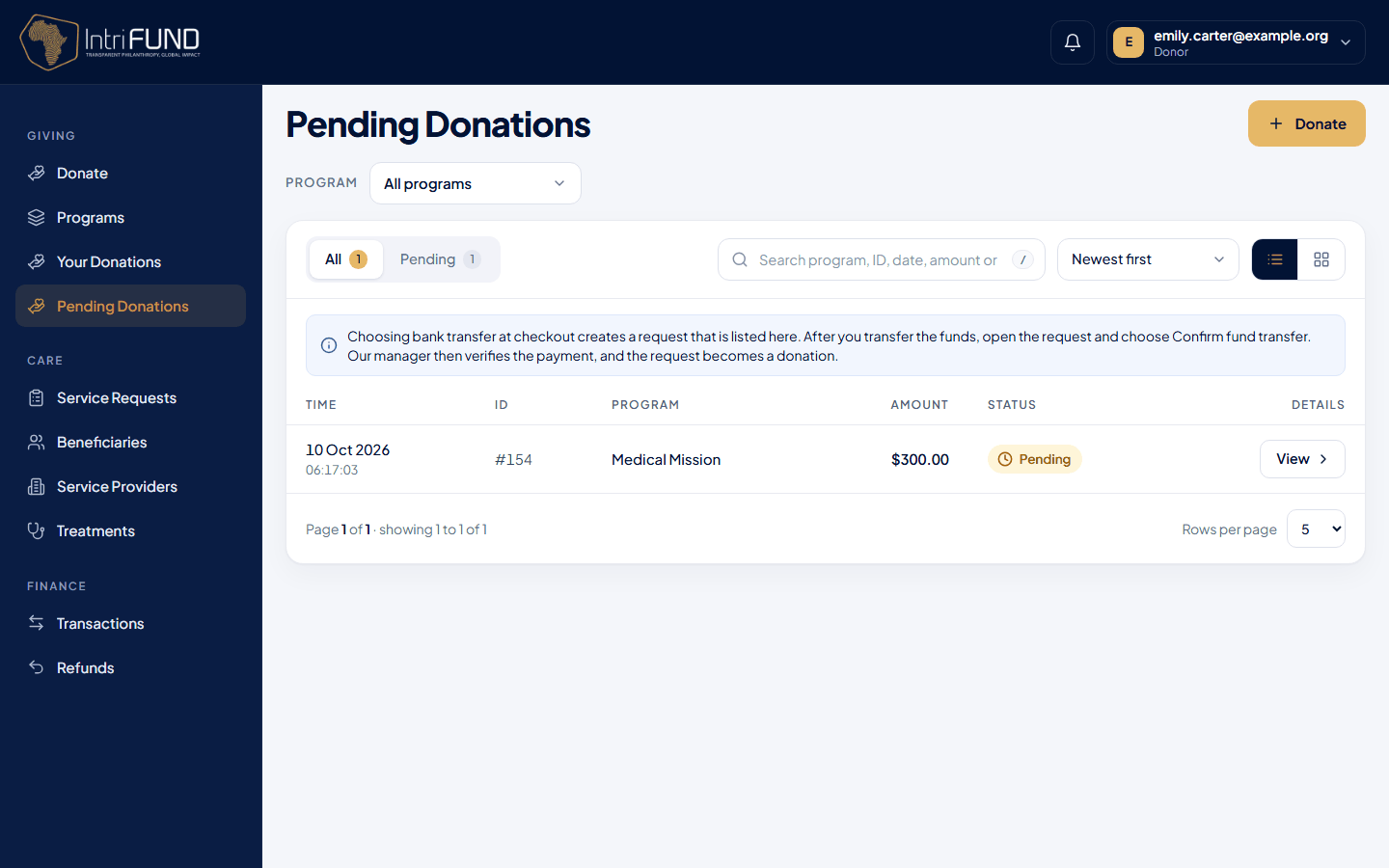
Your donations and transactions
Your Donations lists each gift: date, method and amount. Transactions is the full account, including money that was set aside for patients, returned, or refunded. Money in is a Credit and money out is a Debit. You can search, sort and switch between a list and a grid.
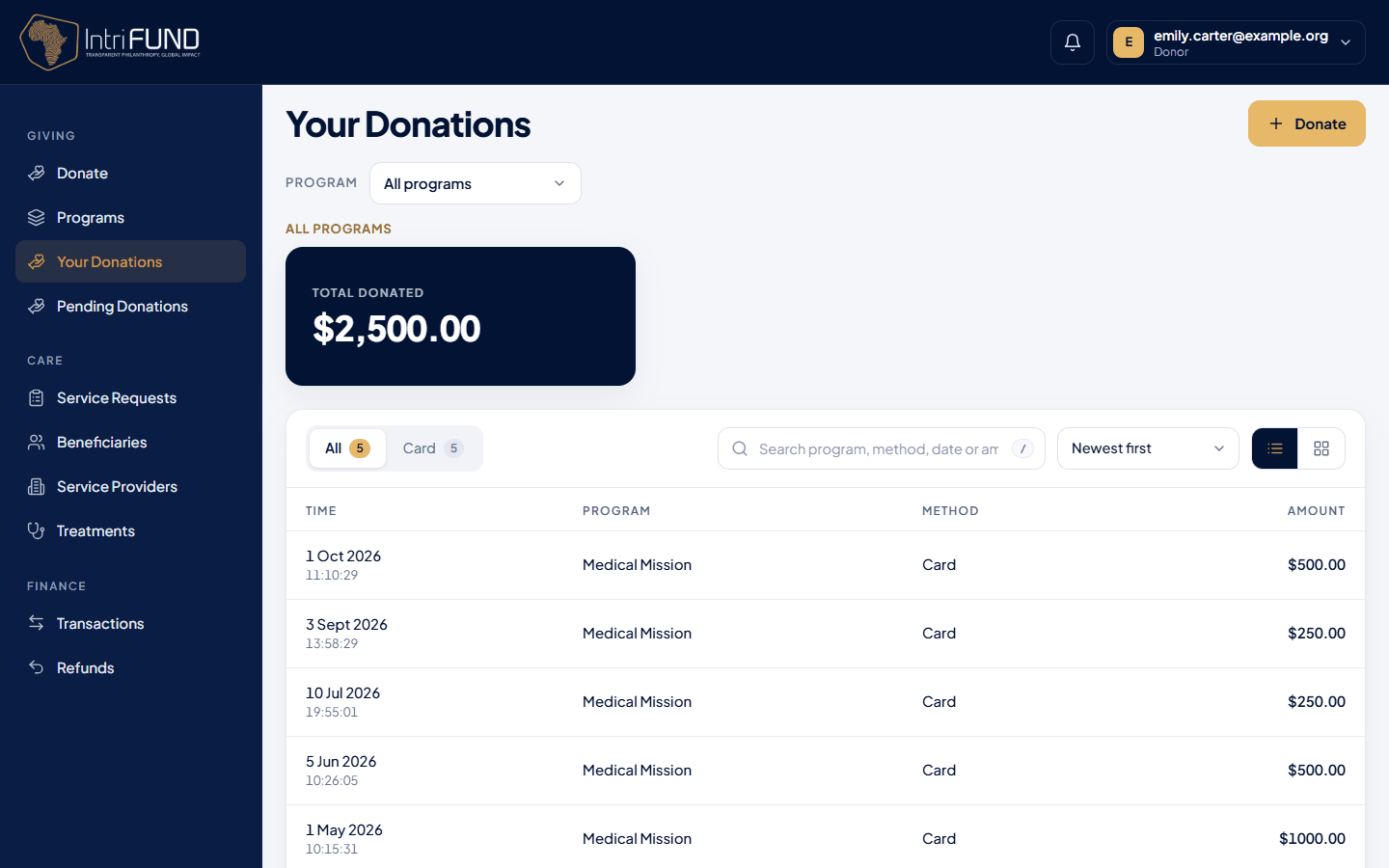
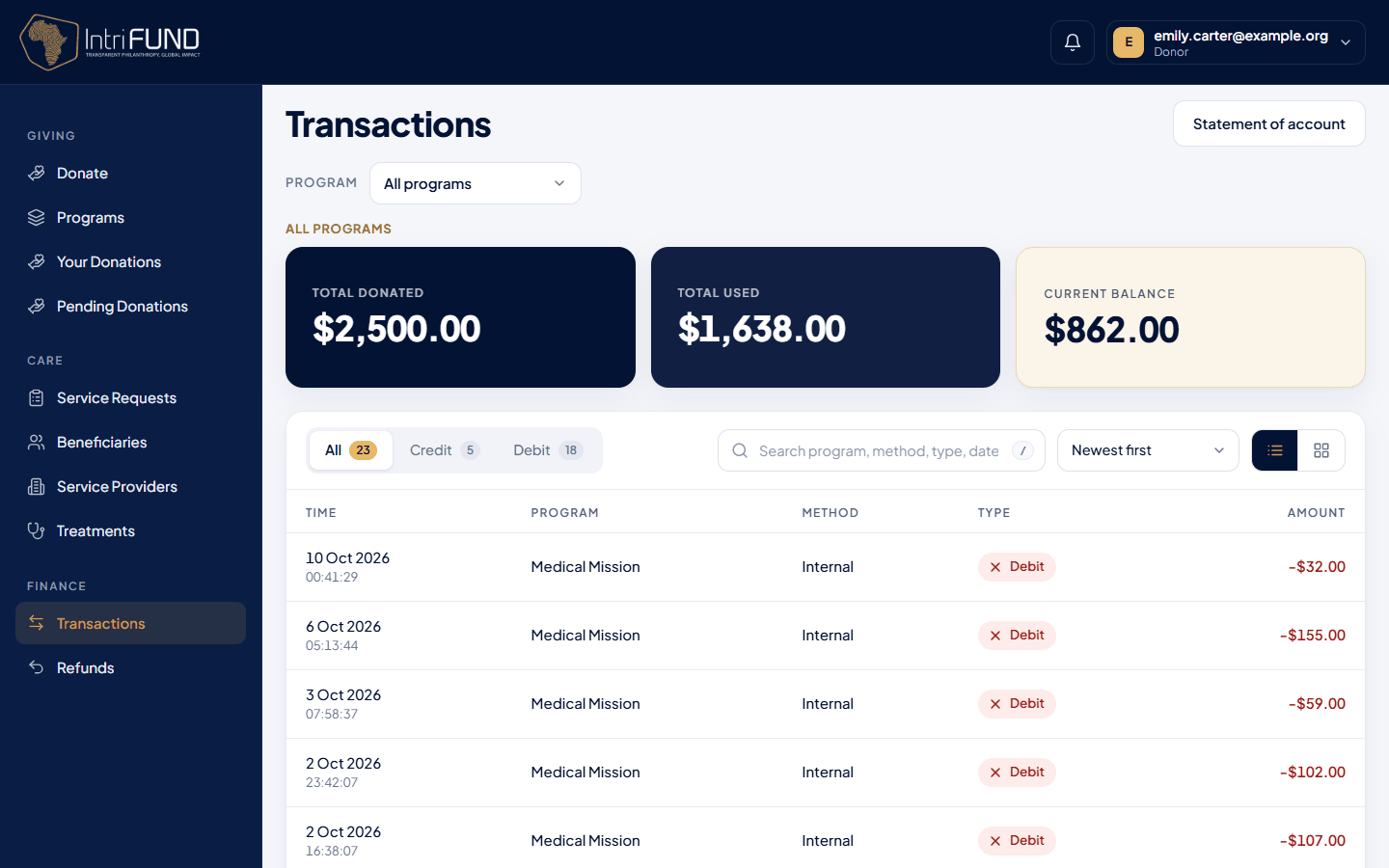
Statement of account
Press Statement of account at the top of Transactions to get a PDF. It has the IntriFund logo, your account, the period and each line with a running balance. It is built in your browser, so it opens straight away. Keep it for your records or your tax return.
Refunds
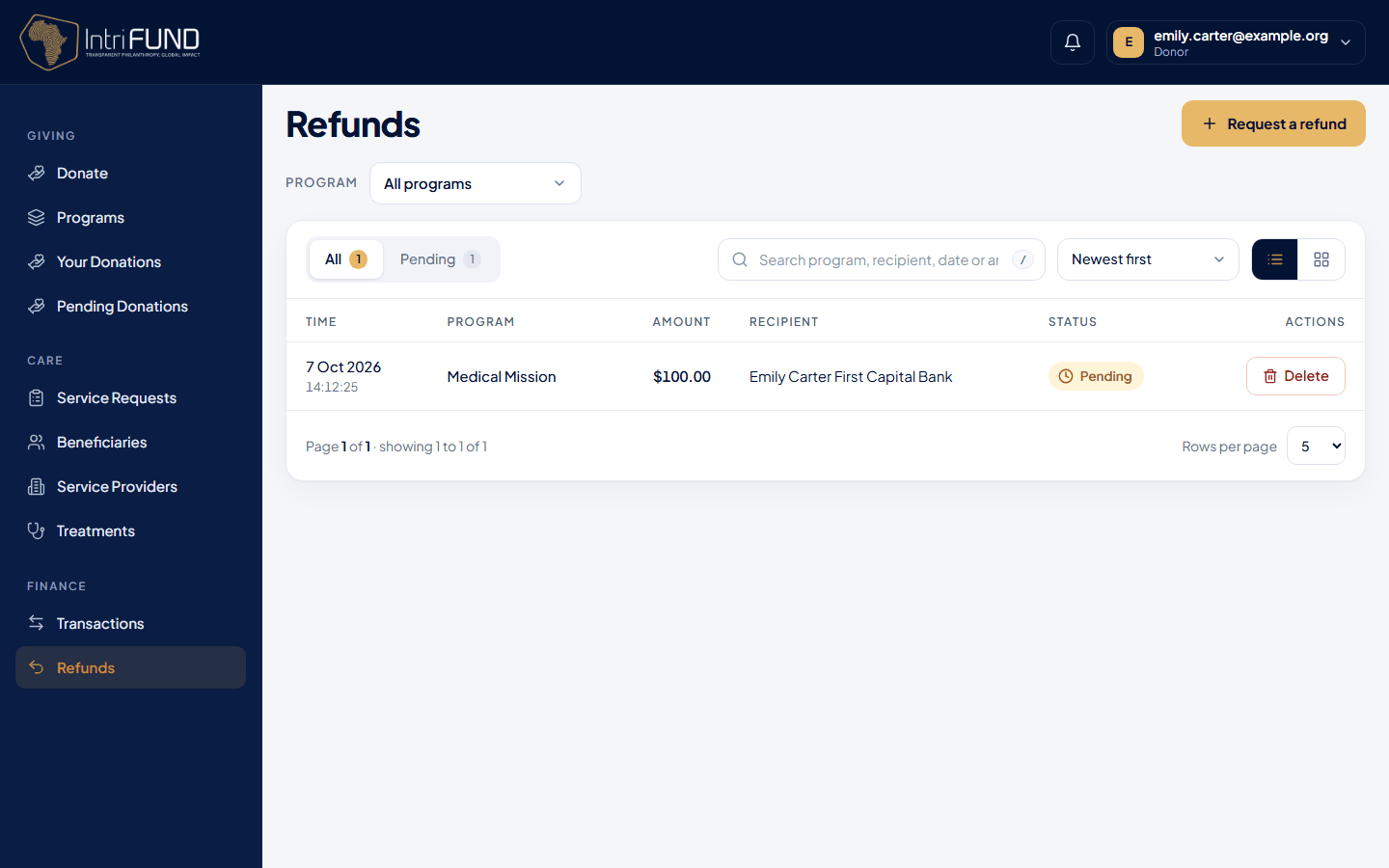
If you change your mind, you may ask for part or all of your unused balance back, within the refund window set for the platform. Money that has already been set aside for a patient’s care cannot be taken back.
Open Refunds and press Request a refund
Choose the amount and send the request
You cannot ask for more than your available balance.
A manager reviews it
The request moves from Pending through Processing and Transferring to Completed. If it is turned down, the reason is shown.
Follow what your gift paid for
Donors can see how the pooled money is used. Under Care in the menu:
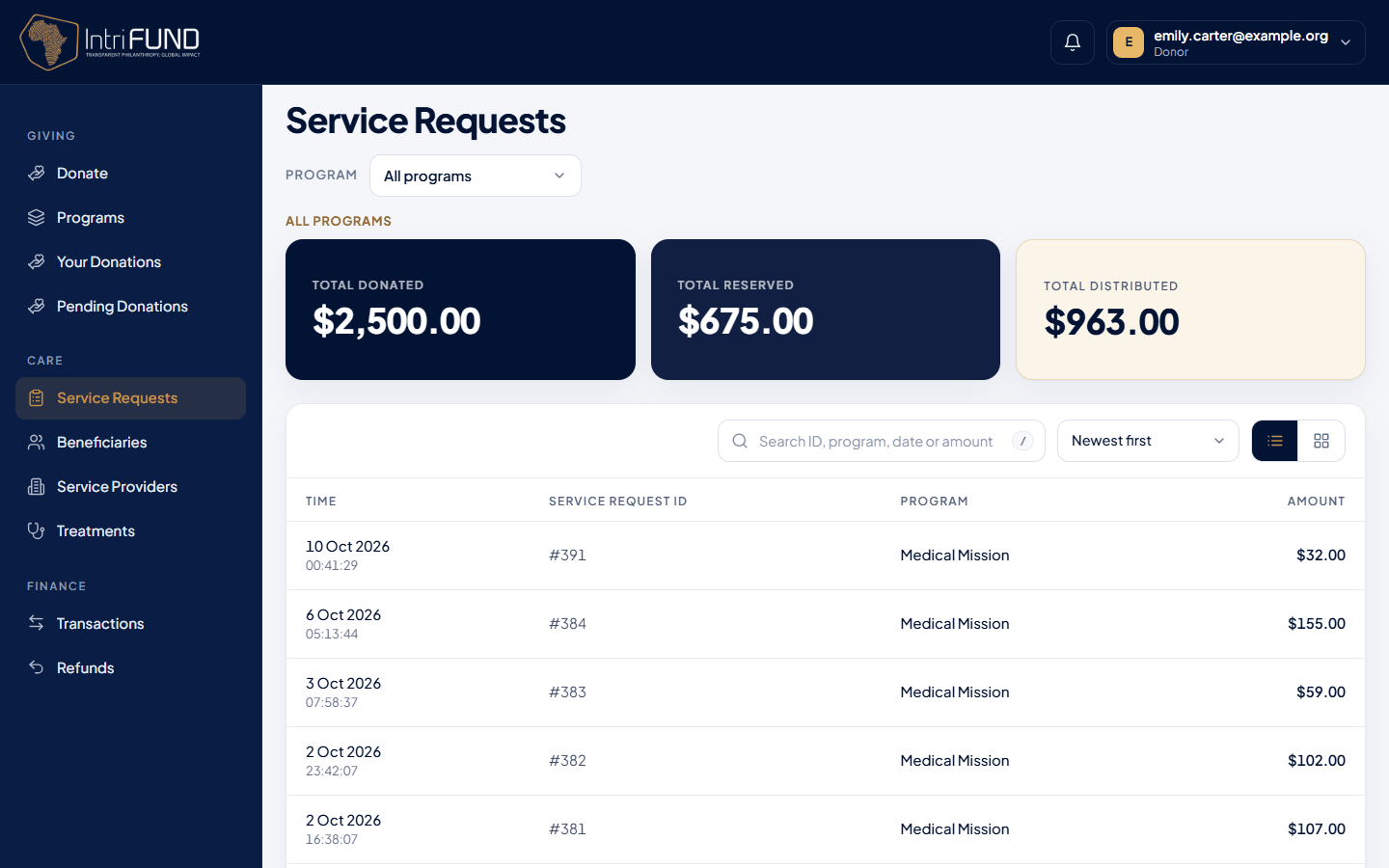
- Service Requests: the treatments clinics have asked to be paid for, across all programs, and where each stands. Use the Program filter to look at one.
- Beneficiaries, Service Providers and Treatments: who is being helped, which clinics are involved and what was done.
Patient names are shown only as far as needed. Health details are not shown to donors.
On your phone
Every screen adapts to a small display. The side menu becomes a button at the top right of the header. Statements and receipts work the same way.